


HVAC website templateFree3 pages

Infrared:Best HVAC website template for HVAC and insulation contractors

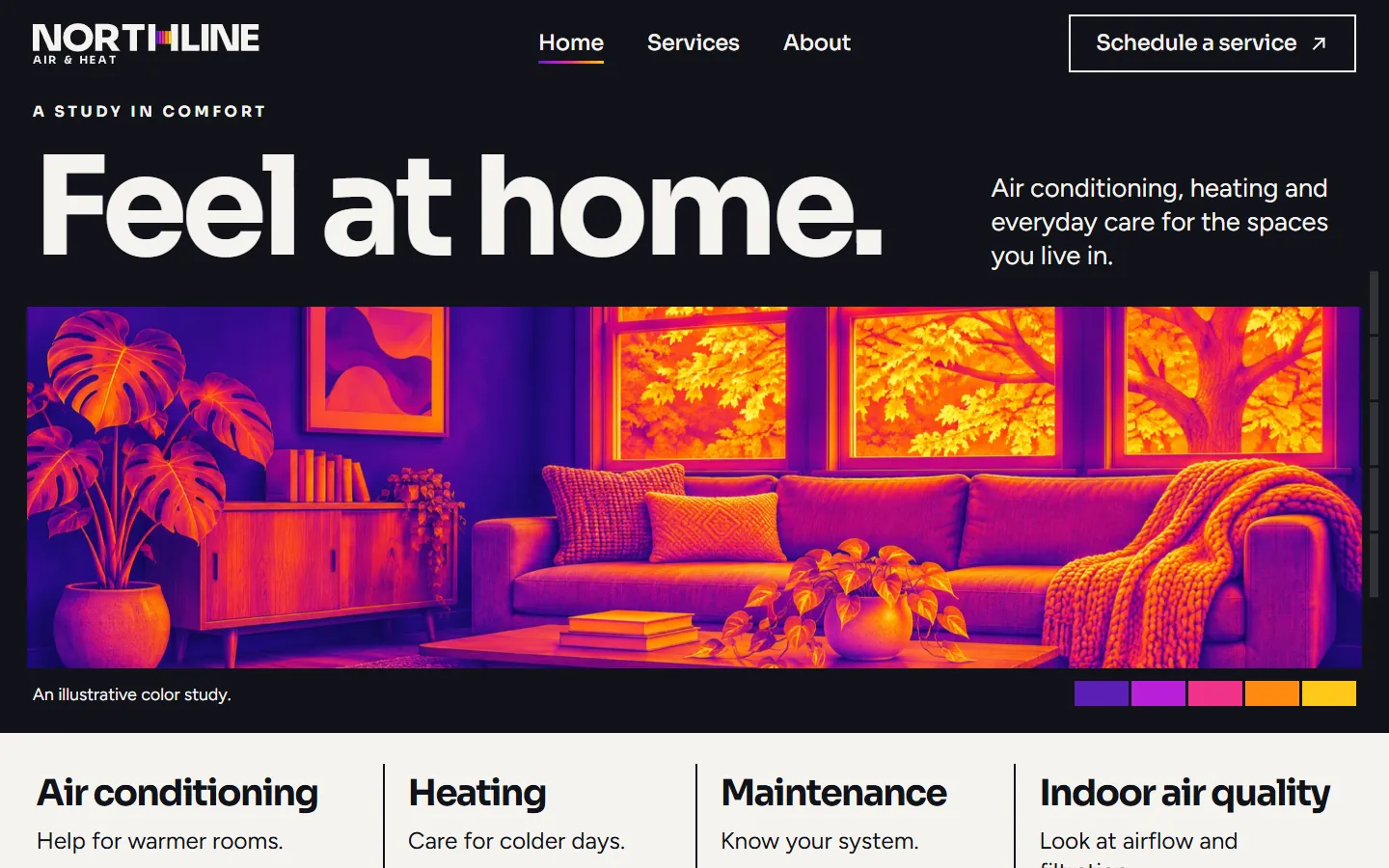
Infrared shows rooms, a vent and a filter as thermal color studies in violet and amber on near-black, labeled as illustrations. It suits a contractor that talks about airflow and comfort room by room and wants a technical look without equipment photos.

An HVAC website that shows rooms as heat. Living rooms, a filter and a ceiling vent appear as violet to amber thermal color studies on near-black, bold Sora headings stay white, and a five-color bar marks each image.

Pages
Home, Services, About, 22 sections in all
Editable fields
222 in HubSpot and WordPress
Typefaces
Sora, Figtree
Image files
10
Downloads
Astro 3.9 MB, HubSpot 5.6 MB, WordPress 4.6 MB
Look
Dark background
Collections
HVAC
Framer
Coming soon

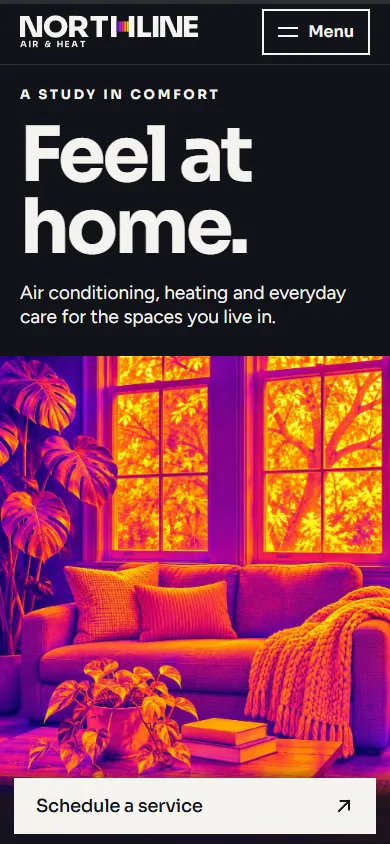
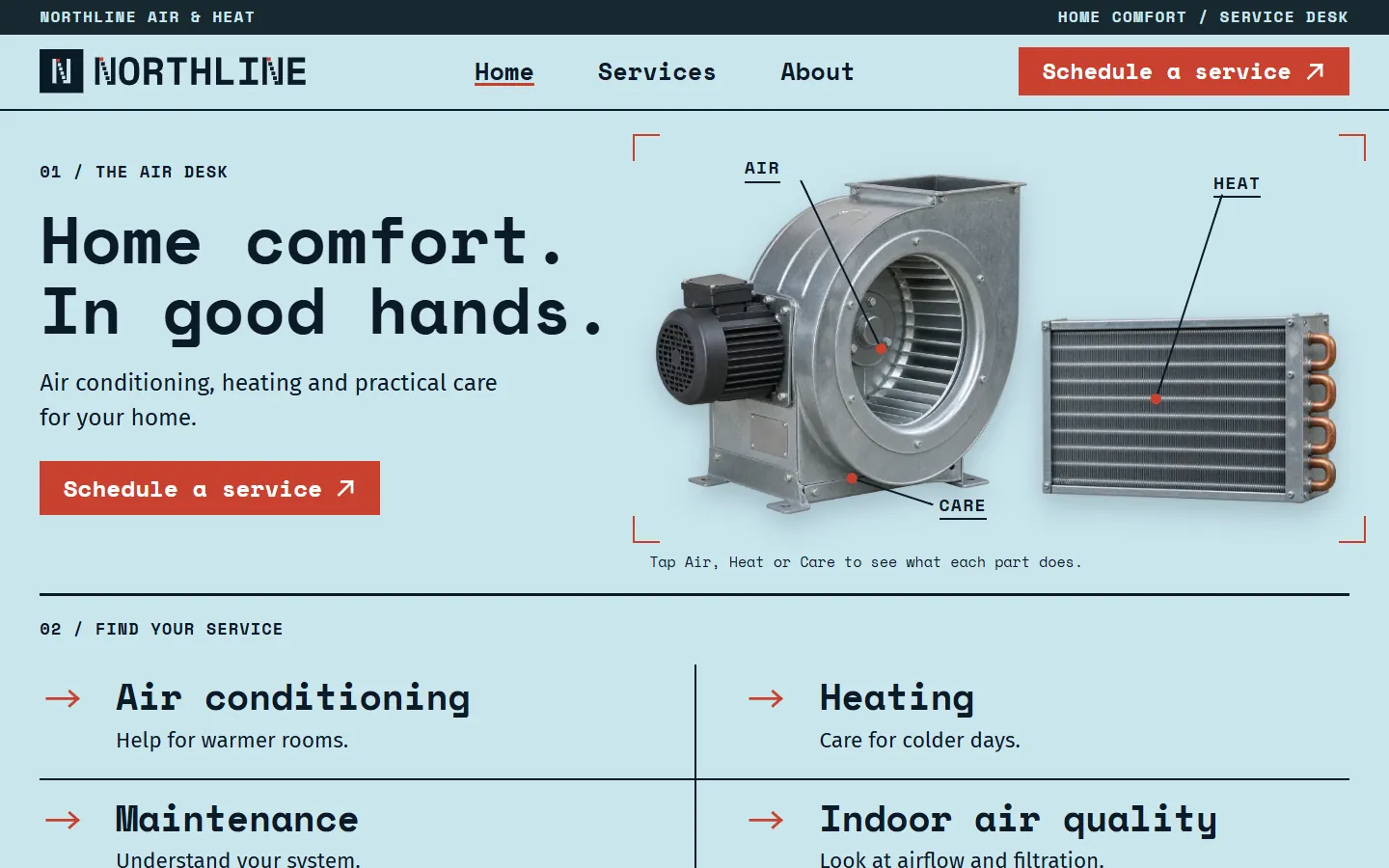
Screenshots of the live demo at 1440 and 390 pixels. The content is placeholder: Northline Air & Heat, a fictional heating and cooling company that offers air conditioning, heating, maintenance and indoor air quality service.

Download Infrared

Free: a short form (first name and work email) once, then every zip downloads straight away. Free to use and adapt for personal and commercial sites. Each zip holds one folder, infrared-hvac, with a README; the install steps below are condensed from it.

Astro

infrared-hvac-astro.zip · 3.9 MB

Download zip

An Astro project: one page file each for Home, Services and About, one component per section, the CSS, scripts, fonts and images in public/.

Needs Node 22.12 or newer.

  1. Unzip infrared-hvac-astro.zip; it holds one folder, infrared-hvac.
  2. In that folder run npm install (Node 22.12 or newer).
  3. Run npm run dev and open http://localhost:4321; the pages are /, /services/ and /about/.
  4. Edit the copy in src/components (one file per section), the colors and type in public/css, and the images in public/images.
  5. Run npm run build; the static site is written to dist/.
More from the Astro README

What is where

  • src/pages: one file per page (index, services, about), with its head and its sections in order.
  • src/components: one file per section; the skip link and the footer are shared by the three pages.
  • public/css and public/js: the stylesheets and scripts. public/fonts: the typefaces, open source (see LICENSE.md). public/images: the pictures and the logo.
  • CLAUDE.md and AGENTS.md: notes that tell Claude Code or Codex how the project is organized.

Make it yours

  • Repeated items (cards, steps, questions) share the same markup: copy one to add another.
  • Each page has its own header and footer, because each marks its own page as current in the menu. Change all three when you change one.
  • Remove a section by deleting its tag and its import in the page file.
  • Set the title and meta description of each page. The forms check their fields and send nothing: connect them to your form service.

How it was checked

  • Built with astro build and compared with the static site page by page at desktop and phone widths, with the links between the three pages checked.

HubSpot

infrared-hvac-hubspot.zip · 5.6 MB

Download zip

A HubSpot CMS theme: Home, Services and About templates plus a Page template, one module per section, each with its own fields.

Needs a free HubSpot account and Node.js 20 or newer for the HubSpot CLI.

  1. Install the HubSpot CLI: npm install -g @hubspot/cli (Node.js 20 or newer), then run hs account auth.
  2. Unzip infrared-hvac-hubspot.zip, then from the folder that holds infrared-hvac run hs cms upload infrared-hvac infrared-hvac.
  3. In HubSpot go to Content > Website Pages > Create > Website page and set Infrared Hvac as the active theme.
  4. Create three pages from the templates Infrared Hvac - Home (at /), Infrared Hvac - Services (at /services) and Infrared Hvac - About (at /about).
  5. Give each page its title and meta description in Settings, then publish.
More from the HubSpot README

Change the content

  • Each section is a module with its own fields, 222 in all. Click a section in the page editor and its fields open on the left, grouped by item.
  • The sections in the page body sit in a drag and drop area: move, remove or add them, and add HubSpot modules such as forms between them.
  • Images: an empty image field shows the template's own picture. Links: /services, /about and / are the pages of the site; #faq jumps within a page.
  • The forms are demonstrations. Swap one for a HubSpot form module to collect answers.

What is in the theme

  • templates/home.html, services.html and about.html, plus page.html for any other page with the same header and footer.
  • modules/<name>.module: one per section, its markup and its fields. css, js, fonts and images: the site's own files.
  • HubSpot takes no WebP in a theme, so the images are PNG and JPEG copies.

How it was checked

  • Converted from the static site by the same script as every template here, with every module and its fields generated from the page.
  • Not checked yet: uploading to a HubSpot account and HubSpot's own preview, the page editor and publishing.

WordPress

infrared-hvac-wordpress.zip · 4.6 MB

Download zip

A WordPress block theme: Home, Services and About with one block per section, plus page, post, blog and 404 templates.

Needs WordPress 6.6 or newer and PHP 7.4 or newer.

  1. In WordPress go to Appearance > Themes > Add New Theme > Upload Theme.
  2. Choose infrared-hvac-wordpress.zip, then Install Now and Activate.
  3. The homepage shows the template, and activating the theme creates the Services (/services/) and About (/about/) pages if they do not exist yet.
  4. Edit each page in Appearance > Editor > Templates: Front Page, Page: services or Page: about. Click a section, change its fields in the Block tab, then Save.
More from the WordPress README

Change the content

  • Each section is a block with its own fields, 222 in all, listed in the Block tab and grouped by item. The page updates as you type.
  • Header and footer: each page has its own, because each marks its own page as current in the menu. Change all three.
  • Empty a field to remove its element; clear every field of a card and the card goes. Move sections with the arrows in the toolbar, or add one back from the block inserter.
  • The forms are demonstrations: connect them to a form plugin or service before going live.

What the fields do not cover

  • More items than the template has needs an edit in sections/<name>.php (markup) and inc/sections.php (fields).
  • Icons and drawings are inline SVG; colors, fonts and spacing are in the stylesheets in css/.
  • The theme prints each page title and description; an SEO plugin takes over the description when active. Functions and blocks are prefixed infrared_hvac_ and infrared-hvac/.

How it was checked

  • Installed from the zip in WordPress Playground on WordPress 7.1.4 with PHP 8.3: the theme activates, creates the Services and About pages, and each page matches the static version at 1440 and 390 pixels.
  • Not checked: a real hosting account, browsers other than Chromium, other plugins and multisite.

Framer

Framer version coming soon. It will be listed here next to the other three downloads.

The three pages of Infrared and their sections

In page order. In HubSpot each section is a module and in WordPress a block, 222 fields in all; in Astro each is one component file. The live demo has all three pages: use the links in its header.

Home · 10 sections

Home page

  1. HeaderWordmark and the Home, Services and About links · 18 fields
  2. Feel at homeHeading, text and links · 7 fields
  3. Our servicesAir conditioning, Heating, Maintenance, Indoor air quality · 13 fields
  4. A clearer way forwardTell us what you notice, Understand the system, Choose the next step · 11 fields
  5. Look at the whole pictureHeading, text and links · 9 fields
  6. People make the differenceHeading, text and links · 8 fields
  7. Let’s find your comfort zoneHeading, text and links · 8 fields
  8. FooterWordmark, page links and the closing line · 12 fields
  9. Phone action barA request button fixed to the bottom of the screen on phones · 2 fields
  10. ServiceHeading, text and links · 12 fields
Services · 8 sections

Services page

  1. HeaderWordmark and the Home, Services and About links · 18 fields
  2. Care for every cornerHeading, text and links · 7 fields
  3. Cooling and heatingAir conditioning, Heating · 9 fields
  4. Maintenance and indoor airMaintenance, Indoor air quality · 10 fields
  5. Tell us what you’re noticingHeading, text and links · 7 fields
  6. FooterWordmark, page links and the closing line · 12 fields
  7. Phone action barA request button fixed to the bottom of the screen on phones · 2 fields
  8. ServiceHeading, text and links · 12 fields
About · 8 sections

About page

  1. HeaderWordmark and the Home, Services and About links · 18 fields
  2. Here for everyday comfortHeading, text and links · 7 fields
  3. Start with the way you liveHeading, text and links · 4 fields
  4. Clear. Considered. HumanListen first, Explain the options, Work thoughtfully · 8 fields
  5. Let’s talk about your homeHeading, text and links · 8 fields
  6. FooterWordmark, page links and the closing line · 12 fields
  7. Phone action barA request button fixed to the bottom of the screen on phones · 2 fields
  8. ServiceHeading, text and links · 12 fields

Design notes

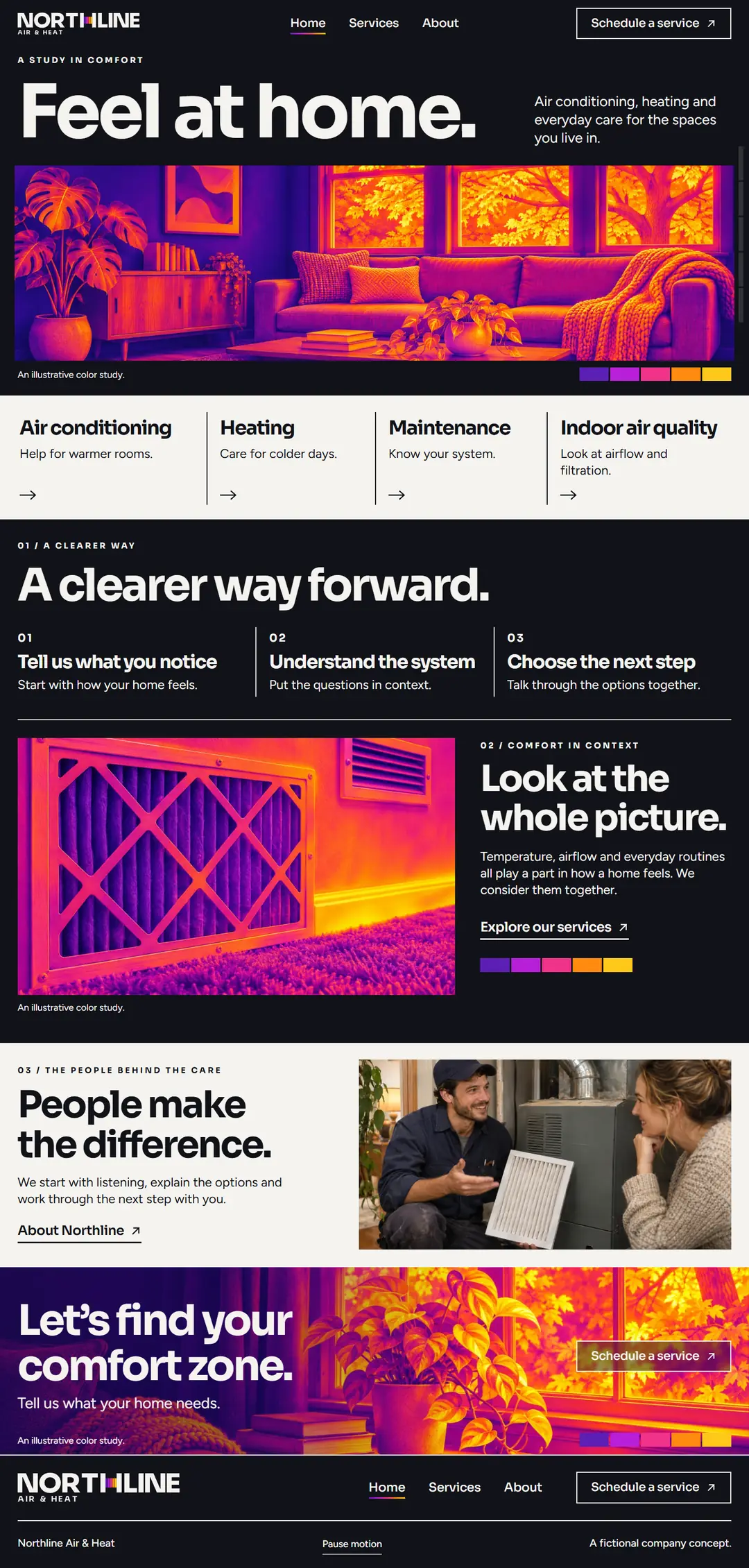
The first screen is near-black with "Feel at home." in very large Sora on the left and a short line on the right, above a wide thermal color study of a living room in violet, magenta and amber.

A paper white row holds the four services with arrows. Back on black, three steps sit above a thermal study of a filter beside "Look at the whole picture." Then a photo of a technician talking with a homeowner sits beside "People make the difference." and the page closes on a thermal band with "Let's find your comfort zone."

A five-color bar (violet to yellow) sits under each thermal image and in the buttons, and the images are labeled as illustrative color studies.

Shape and spacing

Outlined square buttons with arrows, wide full-bleed images, a five-color bar as a recurring mark and thin rules between steps.

Images

10 images as WebP: thermal color studies of a living room, a dining room, a ceiling vent, a filter and a window with a plant (two with phone crops), and photos of a technician and a team visit.

Typefaces
  • SoraBold headings and the wordmark
  • FigtreeBody copy, labels and the form

Open source, included as WOFF2 files in the fonts folder (see LICENSE.md in each zip).

Colors
  • Carbon #111218Page background
  • Paper #F4F3EFServices row and text
  • Violet #5B1FB5Cold end of the color bar
  • Magenta #F0338AMiddle of the color bar
  • Amber #FF8A0FWarm end of the color bar and highlights
What works on the page
  • On phones the links move into a menu, and a "Schedule a service" button stays at the bottom of the screen.
  • Every "Schedule a service" button, on all three pages, opens the same request form in a panel over the page.
  • Moving between pages plays a short shutter of colored bars; a "Pause motion" button turns the motion off.
  • Sections ease in as they scroll into view; the motion turns off under reduced-motion settings.
  • The service request form checks its fields in the browser and confirms on the page. It sends nothing until you connect it.

Who Infrared fits

An HVAC company that wants to look modern and technical without equipment photos.

A company that talks about airflow, insulation and comfort in each room.

Anyone who prefers a dark site with strong color.

A brand in purple, magenta or orange.
See the whole page as one image (1080 by 2260 pixels, 210 KB)
The full Infrared home page from header to footer at 1440 pixels wide

Questions about Infrared

Are the thermal images real camera readings?

No. They are illustrative color studies made for the template, and the page labels them that way. Do not present them as readings from a customer's home.

Can I turn off the page transition?

Yes. The "Pause motion" button turns it off for the visitor, reduced-motion settings skip it, and you can remove the shutter element from the pages.

What does the request form ask?

Name, phone or email, the service and what the visitor is noticing. It says on the form that it is a demo and sends nothing until you connect it.

Is Northline Air & Heat real?

No. The company and its details are placeholders. Free to use and adapt for personal and commercial sites.

More HVAC templates like Infrared

Same content, different designs. Infrared is listed in HVAC website templates. Or browse the full gallery.

Galvanized HVAC website template, home page, first screen on a 1440 pixel wide desktop

HVACDark and light3 pages

Galvanized

A technical sheet on powder blue: crop marks, labeled equipment photos, monospace headings and red buttons.
  • Astro
  • HubSpot
  • WordPress
  • Framer soon
Details Live demo
Lamplight HVAC website template, home page, first screen on a 1440 pixel wide desktop

HVACDark3 pages

Lamplight

Evening photos of lamplit rooms on charcoal, with a side menu, thin type and amber buttons.

  • Astro
  • HubSpot
  • WordPress
  • Framer soon
Details Live demo
Ultramarine HVAC website template, home page, first screen on a 1440 pixel wide desktop

HVACDark and light3 pages

Ultramarine

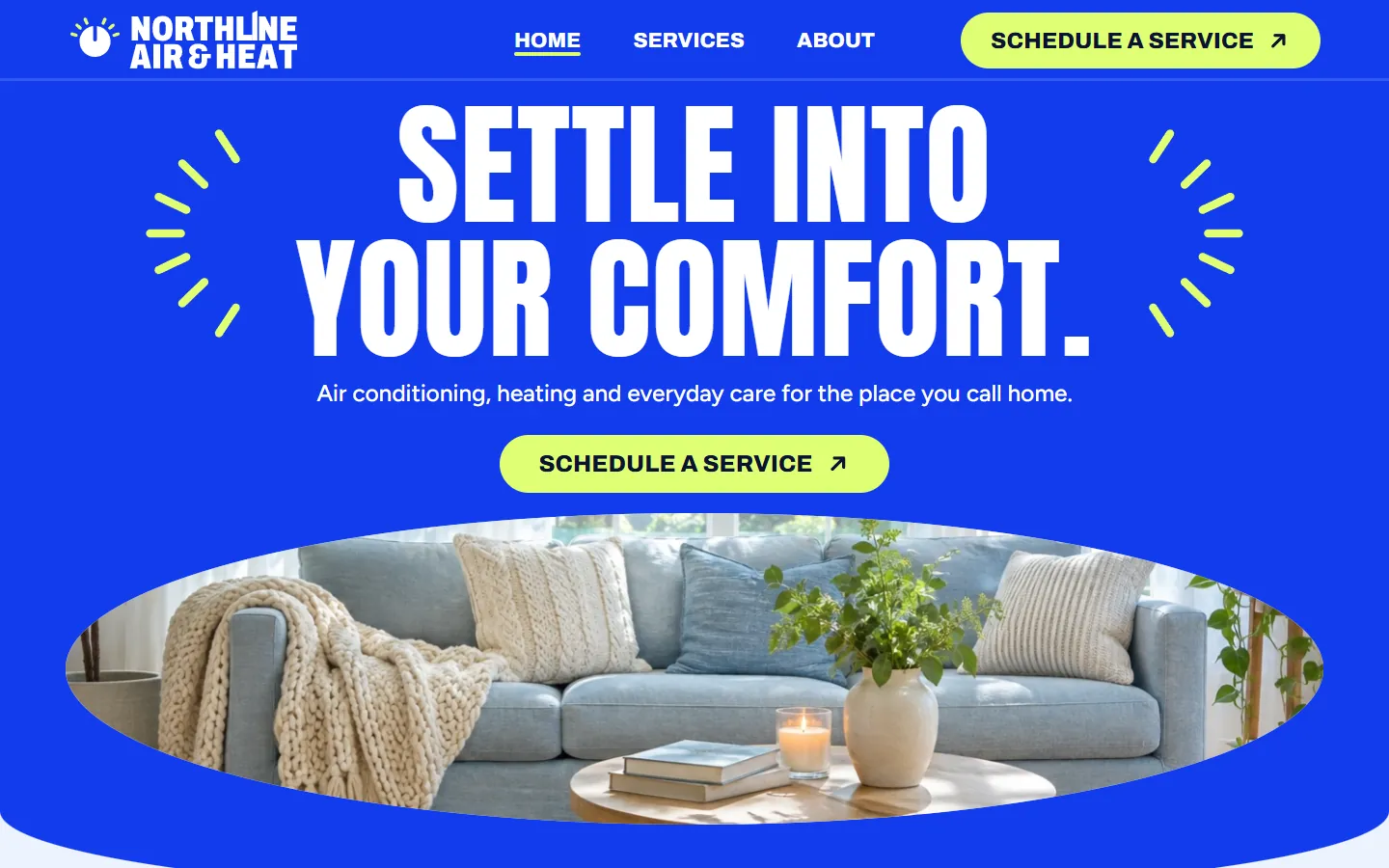
Electric blue with condensed capitals, sunburst strokes, oval photo frames and lime buttons.

  • Astro
  • HubSpot
  • WordPress
  • Framer soon
Details Live demo

Start with one process.

We learn the business and build your first go-to-market process on us this month.

Download the template

Free. Tell us who you are once and every template downloads straight away.

No newsletter unless you tick the box. Privacy policy