



















Raspberry:Best roofing website template for commercial roofing
Raspberry uses stencil type, numbered chapters and CSS stripes instead of pictures, with the menu in a fixed side bar. The plain, direct look and a form that asks for the property type suit a commercial or industrial roofer, and it is the smallest download in the roofing set.
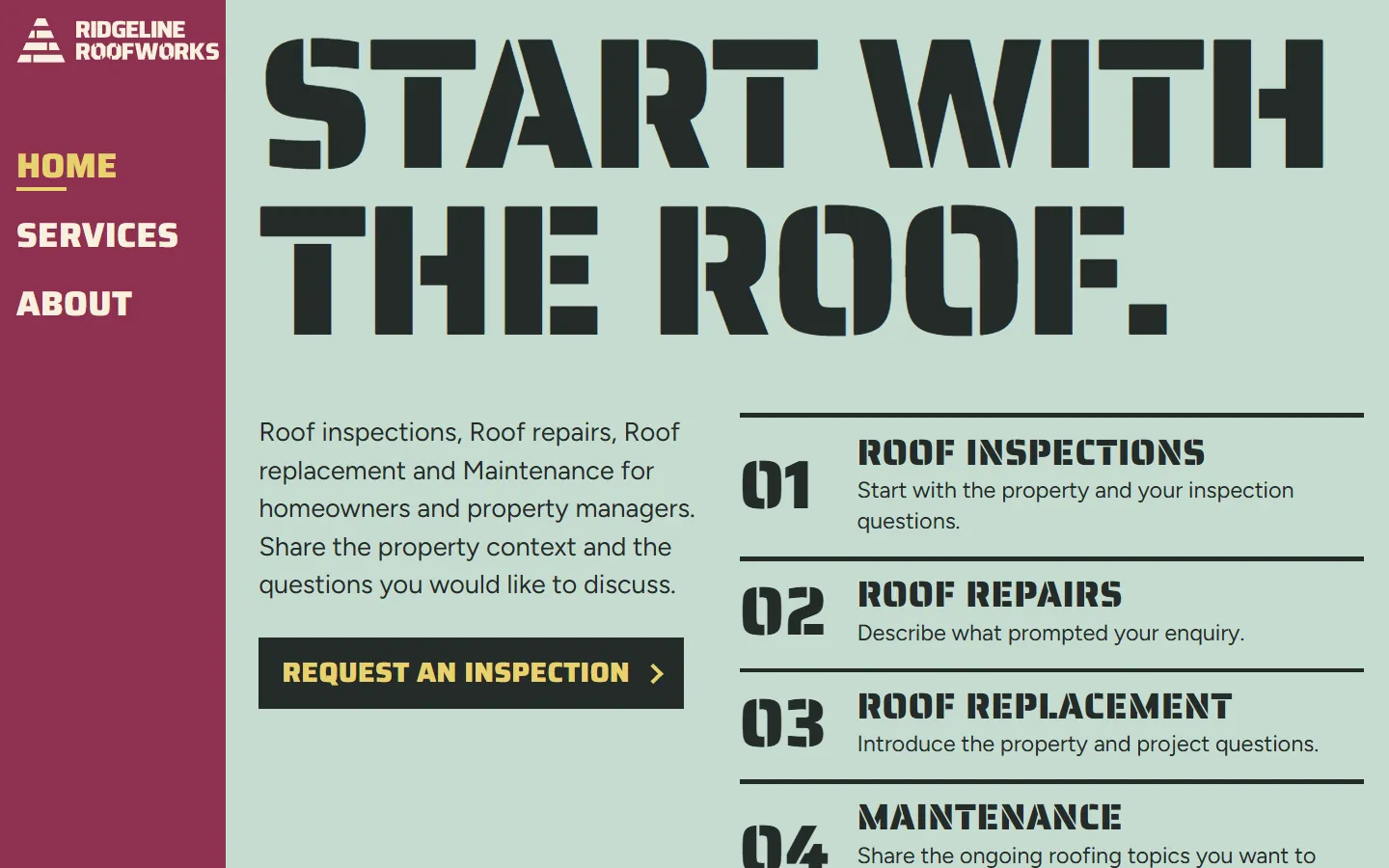
A roofing website made only of type and color. A raspberry side bar holds the menu, huge stencil headings fill mint and cream panels, and the four services run as numbered chapters down the home page. There is not one image file.
- Pages
- Home, Services, About, 19 sections in all
- Editable fields
- 242 in HubSpot and WordPress
- Typefaces
- Saira Stencil One, Saira, Figtree
- Image files
- 0
- Downloads
- Astro 82 KB, HubSpot 171 KB, WordPress 159 KB
- Look
- Light background
- Collections
- Roofing
- Framer
- Coming soon
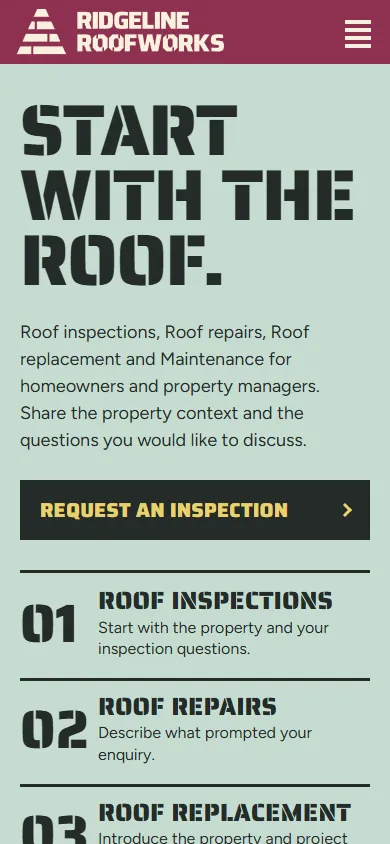
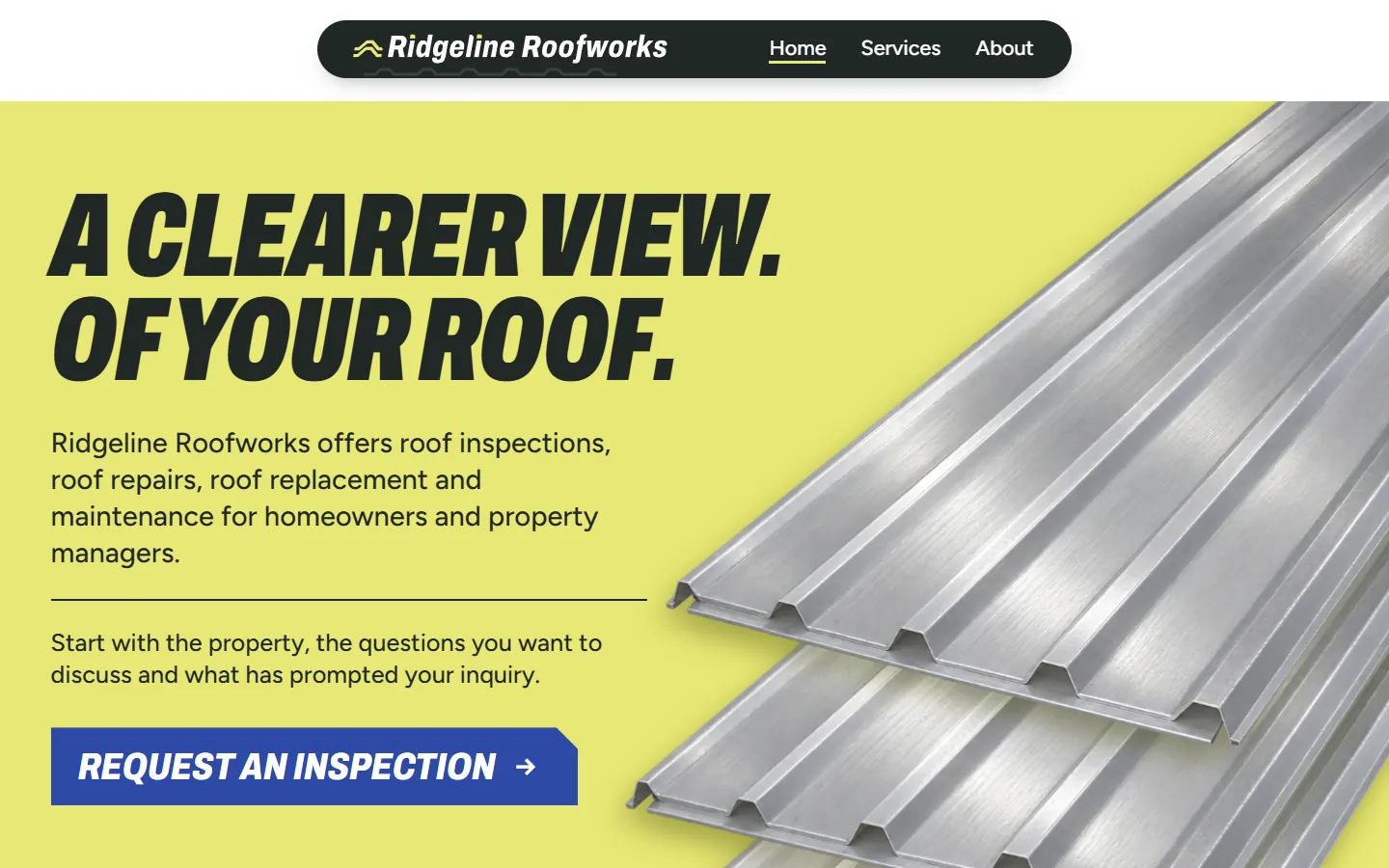
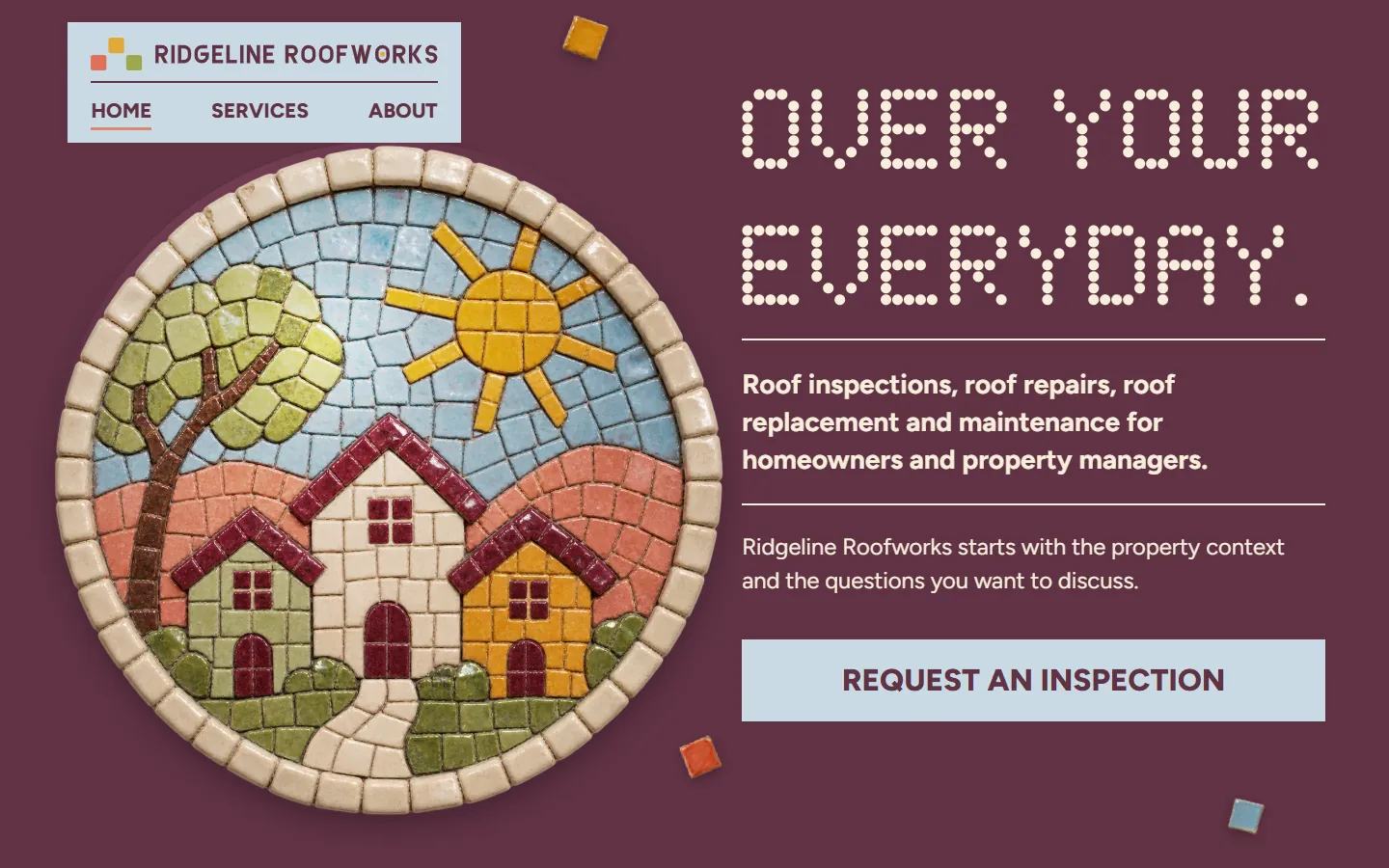
Screenshots of the live demo at 1440 and 390 pixels. The content is placeholder: Ridgeline Roofworks, a fictional roofing company that offers roof inspections, repairs, replacement and maintenance.
Download Raspberry
Free: a short form (first name and work email) once, then every zip downloads straight away. Free to use and adapt for personal and commercial sites. Each zip holds one folder, raspberry-roofing, with a README; the install steps below are condensed from it.
An Astro project: one page file each for Home, Services and About, one component per section, the CSS, scripts, fonts and images in public/.
Needs Node 22.12 or newer.
- Unzip raspberry-roofing-astro.zip; it holds one folder, raspberry-roofing.
- In that folder run npm install (Node 22.12 or newer).
- Run npm run dev and open http://localhost:4321; the pages are /, /services/ and /about/.
- Edit the copy in src/components (one file per section), the colors and type in public/css, and the images in public/images.
- Run npm run build; the static site is written to dist/.
More from the Astro README
What is where
- src/pages: one file per page (index, services, about), with its head and its sections in order.
- src/components: one file per section; the skip link and the footer are shared by the three pages.
- public/css and public/js: the stylesheets and scripts. public/fonts: the typefaces, open source (see LICENSE.md). public/images: the pictures and the logo.
- CLAUDE.md and AGENTS.md: notes that tell Claude Code or Codex how the project is organized.
Make it yours
- Repeated items (cards, steps, questions) share the same markup: copy one to add another.
- Each page has its own header and footer, because each marks its own page as current in the menu. Change all three when you change one.
- Remove a section by deleting its tag and its import in the page file.
- Set the title and meta description of each page. The forms check their fields and send nothing: connect them to your form service.
How it was checked
- Built with astro build and compared with the static site page by page at desktop and phone widths, with the links between the three pages checked.
A HubSpot CMS theme: Home, Services and About templates plus a Page template, one module per section, each with its own fields.
Needs a free HubSpot account and Node.js 20 or newer for the HubSpot CLI.
- Install the HubSpot CLI: npm install -g @hubspot/cli (Node.js 20 or newer), then run hs account auth.
- Unzip raspberry-roofing-hubspot.zip, then from the folder that holds raspberry-roofing run hs cms upload raspberry-roofing raspberry-roofing.
- In HubSpot go to Content > Website Pages > Create > Website page and set Raspberry Roofing as the active theme.
- Create three pages from the templates Raspberry Roofing - Home (at /), Raspberry Roofing - Services (at /services) and Raspberry Roofing - About (at /about).
- Give each page its title and meta description in Settings, then publish.
More from the HubSpot README
Change the content
- Each section is a module with its own fields, 242 in all. Click a section in the page editor and its fields open on the left, grouped by item.
- The sections in the page body sit in a drag and drop area: move, remove or add them, and add HubSpot modules such as forms between them.
- Images: an empty image field shows the template's own picture. Links: /services, /about and / are the pages of the site; #faq jumps within a page.
- The forms are demonstrations. Swap one for a HubSpot form module to collect answers.
What is in the theme
- templates/home.html, services.html and about.html, plus page.html for any other page with the same header and footer.
- modules/<name>.module: one per section, its markup and its fields. css, js, fonts and images: the site's own files.
- HubSpot takes no WebP in a theme, so the images are PNG and JPEG copies.
How it was checked
- Converted from the static site by the same script as every template here, with every module and its fields generated from the page.
- Not checked yet: uploading to a HubSpot account and HubSpot's own preview, the page editor and publishing.
A WordPress block theme: Home, Services and About with one block per section, plus page, post, blog and 404 templates.
Needs WordPress 6.6 or newer and PHP 7.4 or newer.
- In WordPress go to Appearance > Themes > Add New Theme > Upload Theme.
- Choose raspberry-roofing-wordpress.zip, then Install Now and Activate.
- The homepage shows the template, and activating the theme creates the Services (/services/) and About (/about/) pages if they do not exist yet.
- Edit each page in Appearance > Editor > Templates: Front Page, Page: services or Page: about. Click a section, change its fields in the Block tab, then Save.
More from the WordPress README
Change the content
- Each section is a block with its own fields, 242 in all, listed in the Block tab and grouped by item. The page updates as you type.
- Header and footer: each page has its own, because each marks its own page as current in the menu. Change all three.
- Empty a field to remove its element; clear every field of a card and the card goes. Move sections with the arrows in the toolbar, or add one back from the block inserter.
- The forms are demonstrations: connect them to a form plugin or service before going live.
What the fields do not cover
- More items than the template has needs an edit in sections/<name>.php (markup) and inc/sections.php (fields).
- Icons and drawings are inline SVG; colors, fonts and spacing are in the stylesheets in css/.
- The theme prints each page title and description; an SEO plugin takes over the description when active. Functions and blocks are prefixed raspberry_roofing_ and raspberry-roofing/.
How it was checked
- Installed from the zip in WordPress Playground on WordPress 7.1.4 with PHP 8.3: the theme activates, creates the Services and About pages, and each page matches the static version at 1440 and 390 pixels.
- Not checked: a real hosting account, browsers other than Chromium, other plugins and multisite.
Framer
Framer version coming soon. It will be listed here next to the other three downloads.
The three pages of Raspberry and their sections
In page order. In HubSpot each section is a module and in WordPress a block, 242 fields in all; in Astro each is one component file. The live demo has all three pages: use the links in its header.
Home · 9 sections
Home page
- Start with the roofHeading, text and links · 30 fields
- A clear first lookProperty context, Your questions, Practical details · 10 fields
- Start with what you noticedWhat you noticed, Useful background, The next conversation · 13 fields
- Put the project in contextYour property, Your project questions, Practical priorities · 17 fields
- Keep the context togetherThe property context, Information to hand, A useful next step · 15 fields
- Tell us about the propertyHeading, text and links · 18 fields
- FooterWordmark, page links and the closing line · 7 fields
- NavigationThe Home, Services and About links · 9 fields
- Phone action barA request button fixed to the bottom of the screen on phones · 2 fields
Services · 7 sections
Services page
- Roof inspectionsHeading, text and links · 22 fields
- Roof repairsWhat you noticed, Useful background, The next conversation · 9 fields
- Roof replacementYour property, Your questions, Practical priorities · 9 fields
- MaintenanceHeading, text and links · 5 fields
- FooterWordmark, page links and the closing line · 7 fields
- NavigationThe Home, Services and About links · 9 fields
- Phone action barA request button fixed to the bottom of the screen on phones · 2 fields
About · 7 sections
About page
- A practical starting pointHeading, text and links · 31 fields
- Make the context clearYour property, Your questions, Practical clarity · 7 fields
- One property, different perspectivesHomeowners, Property managers · 7 fields
- A useful first enquiryChoose an area, Introduce the property, Add practical details · 11 fields
- FooterWordmark, page links and the closing line · 7 fields
- NavigationThe Home, Services and About links · 9 fields
- Phone action barA request button fixed to the bottom of the screen on phones · 2 fields
Design notes
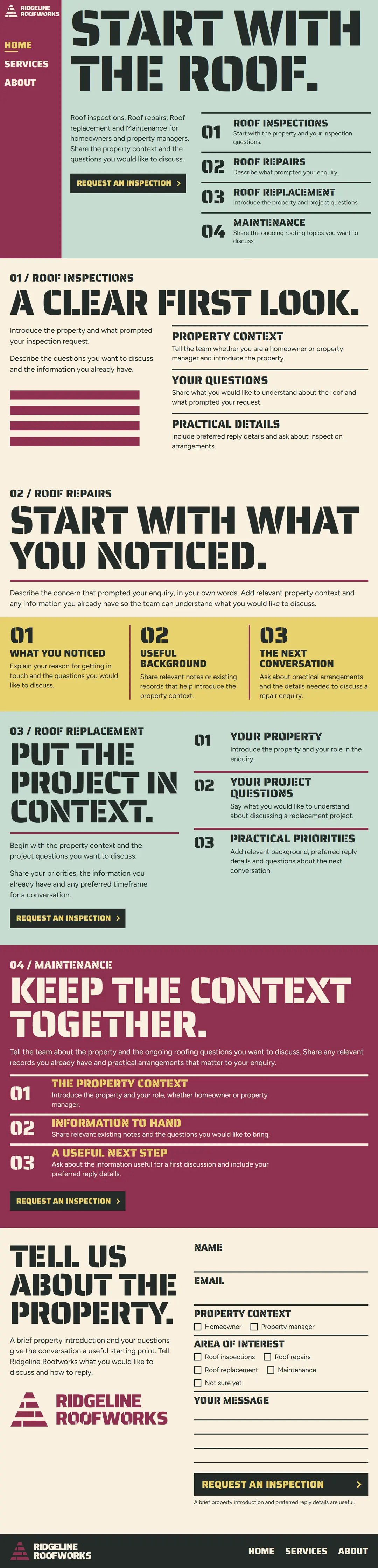
A raspberry bar runs down the left side with the stencil wordmark and the Home, Services and About links. The first screen is mint with "Start with the roof." in very large Saira Stencil, an intro, a charcoal button and the four services as a numbered list.
The home page then runs as four numbered chapters, each with a small label ("01 / Roof inspections") over a large stencil heading: a clear first look, start with what you noticed, put the project in context and keep the context together. A yellow band breaks the cream with three numbered steps, and the last chapter is set on raspberry.
Stripes and rules drawn in CSS take the place of pictures, and the form closes the page with checkboxes for the property type and the area of interest.
Shape and spacing
Square buttons with arrows, thick rules, large numbers and a fixed side bar on desktop.
Images
0 image files: the stripes, rules and wordmark are drawn in CSS and inline SVG.
Typefaces
- Saira Stencil OneDisplay headings and the wordmark
- SairaLabels, numbers and buttons
- FigtreeBody copy
Open source, included as WOFF2 files in the fonts folder (see LICENSE.md in each zip).
Colors
- Raspberry
#8F3151Side bar, labels and the maintenance chapter - Mint
#C5DCD0Hero and chapter backgrounds - Yellow
#E8D26EThe three steps band - Charcoal
#242B29Text, buttons and footer - Cream
#F8F0DEReading sections and the form
What works on the page
- On desktop the menu sits in a fixed side bar; on phones it moves to a top bar with a menu button that closes with Escape.
- A request button stays at the bottom of the screen on phones.
- Sections ease in as they scroll into view; the motion turns off under reduced-motion settings.
- The request form checks its fields in the browser and confirms on the page. It sends nothing until you connect it.
Who Raspberry fits
A roofing company that wants to launch this week, with no photos to gather or license.
A commercial or industrial roofer that wants a direct, no-nonsense look.
Anyone who needs a very small site: the Astro download is the smallest in the set.
A company whose brand color is a deep red or burgundy.
See the whole page as one image (1080 by 4480 pixels, 259 KB)
Questions about Raspberry
Does Raspberry really have no images?
None. The stripes and rules are CSS and the wordmark is an inline SVG, which is why the downloads are the smallest in the roofing set. Add photos of your jobs any time; the layout has room for them.
Can I move the side bar to the top?
On phones it already moves to the top. On desktop the side bar is part of the layout grid; moving it means editing the header styles in the stylesheet.
What does the form ask?
Name, email, whether the visitor is a homeowner or property manager, which services they are interested in, and a message. It checks the name and email and sends nothing until you connect it.
Is the company real?
No. Ridgeline Roofworks is a placeholder. Free to use and adapt for personal and commercial sites.
More roofing templates like Raspberry
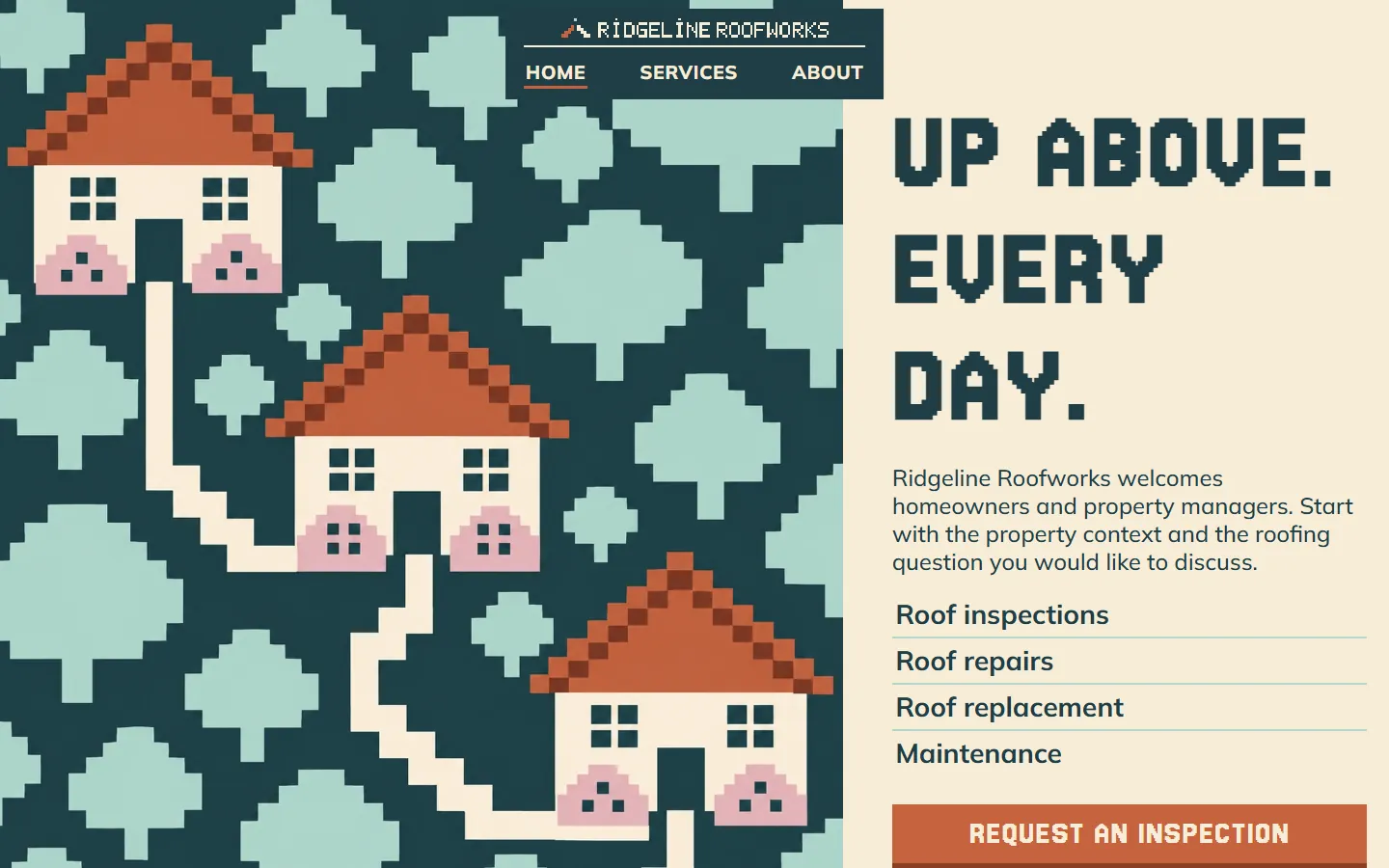
Same content, different designs. Raspberry is listed in Roofing website templates. Or browse the full gallery.

Start with one process.
We learn the business and build your first go-to-market process on us this month.
Template
growigami.com