





















Prune:Best pest control website template for new pest control businesses
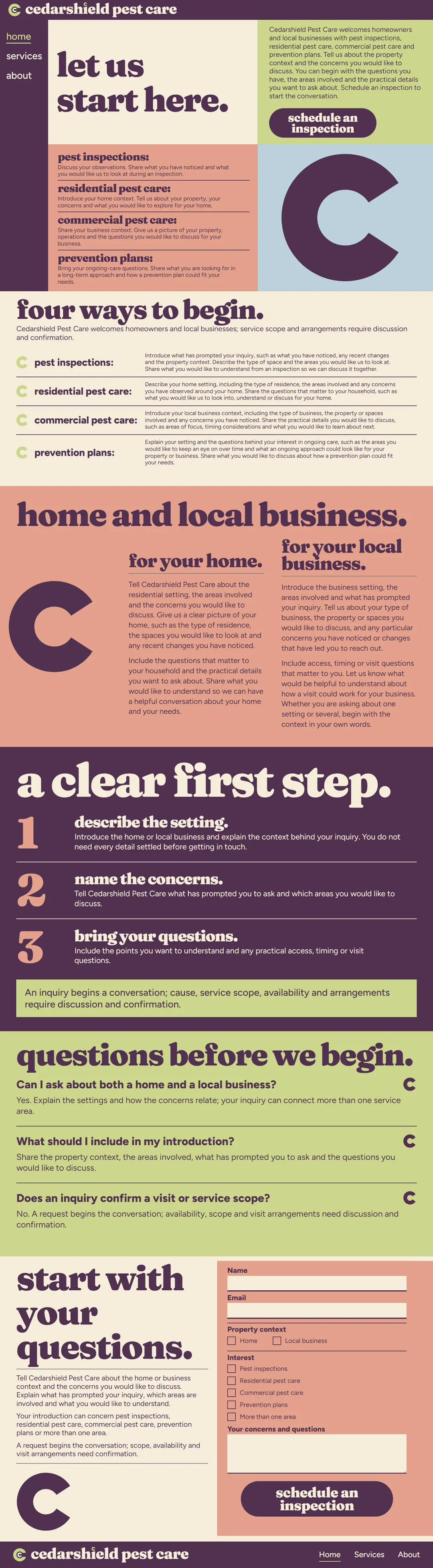
Prune has no photos at all: a large plum letter C, soft Fraunces headings and blocks of salmon, pistachio and sky do the work. With the smallest downloads of the ten it suits a new pest control business that has no photos yet and wants a site live quickly, and the home page walks from four ways to begin to a clear first step and three short questions.
A pest control website in type alone. A large plum letter C anchors each band, soft Fraunces headings in lowercase carry the words on salmon, pistachio, sky and cream, and plum pill buttons lead to the form.
- Pages
- Home, Services, About, 26 sections in all
- Editable fields
- 302 in HubSpot and WordPress
- Typefaces
- Fraunces, Figtree Light
- Image files
- Downloads
- Astro 187 KB, HubSpot 292 KB, WordPress 278 KB
- Look
- Dark and light sections
- Collections
- Pest control
- Framer
- Coming soon
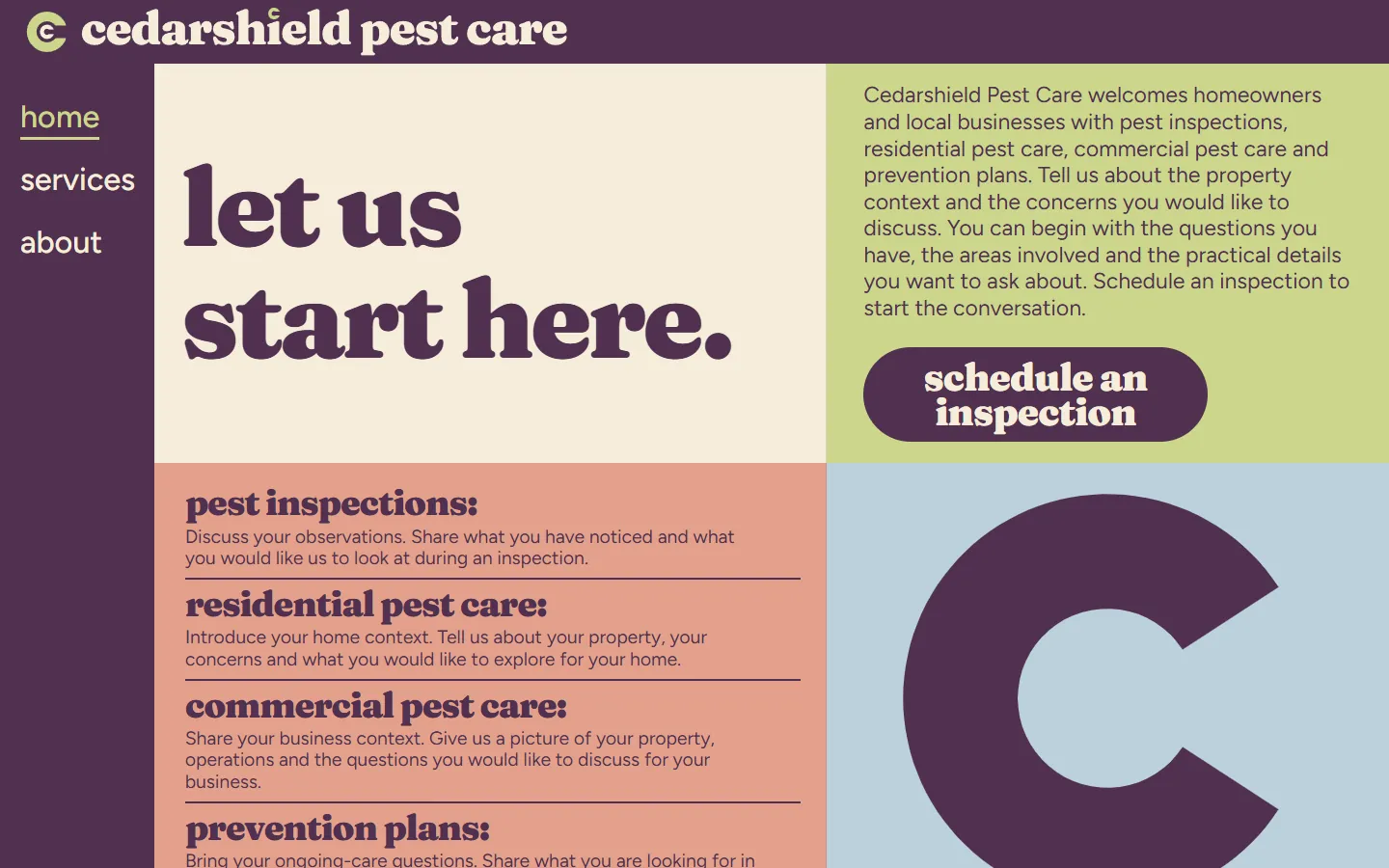
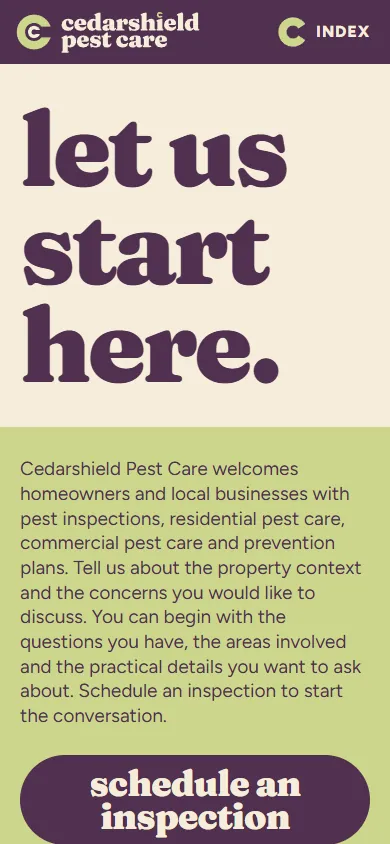
Screenshots of the live demo at 1440 and 390 pixels. The content is placeholder: Cedarshield Pest Care, a fictional pest control company that offers pest inspections, residential pest care, commercial pest care and prevention plans.
Download Prune
Free: a short form (first name and work email) once, then every zip downloads straight away. Free to use and adapt for personal and commercial sites. Each zip holds one folder, prune-pest-control, with a README; the install steps below are condensed from it.
An Astro project: one page file each for Home, Services and About, one component per section, the CSS, scripts, fonts and images in public/.
Needs Node 22.12 or newer.
- Unzip prune-pest-control-astro.zip; it holds one folder, prune-pest-control.
- In that folder run npm install (Node 22.12 or newer).
- Run npm run dev and open http://localhost:4321; the pages are /, /services/ and /about/.
- Edit the copy in src/components (one file per section), the colors and type in public/css, and the images in public/images.
- Run npm run build; the static site is written to dist/.
More from the Astro README
What is where
- src/pages: one file per page (index, services, about), with its head and its sections in order.
- src/components: one file per section; the skip link and the footer are shared by the three pages.
- public/css and public/js: the stylesheets and scripts. public/fonts: the typefaces, open source (see LICENSE.md). public/images: the pictures and the logo.
- CLAUDE.md and AGENTS.md: notes that tell Claude Code or Codex how the project is organized.
Make it yours
- Repeated items (cards, steps, questions) share the same markup: copy one to add another.
- Each page has its own header and footer, because each marks its own page as current in the menu. Change all three when you change one.
- Remove a section by deleting its tag and its import in the page file.
- Set the title and meta description of each page. The forms check their fields and send nothing: connect them to your form service.
How it was checked
- Built with astro build and compared with the static site page by page at desktop and phone widths, with the links between the three pages checked.
A HubSpot CMS theme: Home, Services and About templates plus a Page template, one module per section, each with its own fields.
Needs a free HubSpot account and Node.js 20 or newer for the HubSpot CLI.
- Install the HubSpot CLI: npm install -g @hubspot/cli (Node.js 20 or newer), then run hs account auth.
- Unzip prune-pest-control-hubspot.zip, then from the folder that holds prune-pest-control run hs cms upload prune-pest-control prune-pest-control.
- In HubSpot go to Content > Website Pages > Create > Website page and set Prune Pest Control as the active theme.
- Create three pages from the templates Prune Pest Control - Home (at /), Prune Pest Control - Services (at /services) and Prune Pest Control - About (at /about).
- Give each page its title and meta description in Settings, then publish.
More from the HubSpot README
Change the content
- Each section is a module with its own fields, 302 in all. Click a section in the page editor and its fields open on the left, grouped by item.
- The sections in the page body sit in a drag and drop area: move, remove or add them, and add HubSpot modules such as forms between them.
- Images: an empty image field shows the template's own picture. Links: /services, /about and / are the pages of the site; #faq jumps within a page.
- The forms are demonstrations. Swap one for a HubSpot form module to collect answers.
What is in the theme
- templates/home.html, services.html and about.html, plus page.html for any other page with the same header and footer.
- modules/<name>.module: one per section, its markup and its fields. css, js, fonts and images: the site's own files.
- HubSpot takes no WebP in a theme, so the images are PNG and JPEG copies.
How it was checked
- Converted from the static site by the same script as every template here, with every module and its fields generated from the page.
- Not checked yet: uploading to a HubSpot account and HubSpot's own preview, the page editor and publishing.
A WordPress block theme: Home, Services and About with one block per section, plus page, post, blog and 404 templates.
Needs WordPress 6.6 or newer and PHP 7.4 or newer.
- In WordPress go to Appearance > Themes > Add New Theme > Upload Theme.
- Choose prune-pest-control-wordpress.zip, then Install Now and Activate.
- The homepage shows the template, and activating the theme creates the Services (/services/) and About (/about/) pages if they do not exist yet.
- Edit each page in Appearance > Editor > Templates: Front Page, Page: services or Page: about. Click a section, change its fields in the Block tab, then Save.
More from the WordPress README
Change the content
- Each section is a block with its own fields, 302 in all, listed in the Block tab and grouped by item. The page updates as you type.
- Header and footer: each page has its own, because each marks its own page as current in the menu. Change all three.
- Empty a field to remove its element; clear every field of a card and the card goes. Move sections with the arrows in the toolbar, or add one back from the block inserter.
- The forms are demonstrations: connect them to a form plugin or service before going live.
What the fields do not cover
- More items than the template has needs an edit in sections/<name>.php (markup) and inc/sections.php (fields).
- Icons and drawings are inline SVG; colors, fonts and spacing are in the stylesheets in css/.
- The theme prints each page title and description; an SEO plugin takes over the description when active. Functions and blocks are prefixed prune_pest_control_ and prune-pest-control/.
How it was checked
- Installed from the zip in WordPress Playground on WordPress 7.1.4 with PHP 8.3: the theme activates, creates the Services and About pages, and each page matches the static version at 1440 and 390 pixels.
- Not checked: a real hosting account, browsers other than Chromium, other plugins and multisite.
Framer
Framer version coming soon. It will be listed here next to the other three downloads.
The three pages of Prune and their sections
In page order. In HubSpot each section is a module and in WordPress a block, 302 fields in all; in Astro each is one component file. The live demo has all three pages: use the links in its header.
Home · 11 sections
Home page
- HeaderWordmark and the Home, Services and About links · 2 fields
- let us start hereHeading, text and links · 20 fields
- four ways to beginpest inspections:, residential pest care:, commercial pest care:, prevention plans: · 10 fields
- home and local businessfor your home., for your local business. · 7 fields
- a clear first stepdescribe the setting., name the concerns., bring your questions. · 11 fields
- questions before we beginCan I ask about both a home and a local business?, What should I include in my introduction?, Does an inquiry confirm a visit or service scope? · 7 fields
- start with your questionsHeading, text and links · 20 fields
- FooterWordmark, page links and the closing line · 7 fields
- Phone menuThe menu that opens from the header on phones · 29 fields
- TabHeading, text and links · 7 fields
- PillHeading, text and links · 3 fields
Services · 8 sections
Services page
- HeaderWordmark and the Home, Services and About links · 2 fields
- pest inspectionsyour observations., property context., questions to discuss., residential pest care., your home context., areas to discuss., next-step questions. · 30 fields
- commercial pest carebusiness context., areas involved., practical arrangements. · 9 fields
- prevention plansyour context., your questions., planning details. · 12 fields
- FooterWordmark, page links and the closing line · 7 fields
- Phone menuThe menu that opens from the header on phones · 23 fields
- TabHeading, text and links · 5 fields
- PillHeading, text and links · 3 fields
About · 9 sections
About page
- HeaderWordmark and the Home, Services and About links · 2 fields
- care begins with contextproperty setting:, concerns to discuss:, practical questions: · 18 fields
- the place you describeyour setting:, your observations:, your open questions: · 8 fields
- a useful first conversationHeading, text and links · 5 fields
- start with your questionsHeading, text and links · 19 fields
- FooterWordmark, page links and the closing line · 7 fields
- Phone menuThe menu that opens from the header on phones · 23 fields
- TabHeading, text and links · 5 fields
- PillHeading, text and links · 3 fields
Design notes
A plum rail on the left holds the wordmark and the home, services and about links. The first screen splits into blocks: "let us start here." with a plum "schedule an inspection" pill on pistachio, the intro on plum, the four areas on salmon and a large plum C on sky.
Below come "four ways to begin." with a short paragraph for each area, "home and local business." on salmon, "a clear first step." on plum with three numbered steps and "questions before we begin." with three questions that open and close.
The form closes the page under "start with your questions.", and the About page has one of its own.
Shape and spacing
Plum pill buttons, square blocks of color, a large letter C repeated as a mark and thin rules between items.
Images
No photos: the letter C and the wordmark are SVG inside the page, so the whole site downloads in well under 1 MB.
Typefaces
- FrauncesSoft lowercase serif headings
- Figtree LightBody copy, navigation and the form
Open source, included as WOFF2 files in the fonts folder (see LICENSE.md in each zip).
Colors
- Plum
#50304FText, the rail, the letter C and the steps band - Salmon
#E3A18BThe areas and audiences bands - Pistachio
#CBD68BHero block and accents - Sky
#BCD1DCHero block - Cream
#F5EDDAPage background and the form
What works on the page
- On desktop the links sit in a plum rail on the left; on phones a tab opens the index as a sheet, and a "schedule an inspection" pill stays on screen.
- The three questions under "questions before we begin." open and close.
- An index lists the sections of each page and jumps to them.
- The About page has its own form.
- Sections ease in as they scroll into view; the motion turns off under reduced-motion settings.
- The Schedule an inspection form checks its fields in the browser and confirms on the page. It sends nothing until you connect it.
Who Prune fits
A new pest control business with no photos yet.
A company that wants the lightest, quickest site of the ten.
Anyone who likes a calm, typographic look.
A brand in plum, salmon or green.
See the whole page as one image (1080 by 3913 pixels, 293 KB)
Questions about Prune
Can I add photos later?
Yes. Any block can take an image in WordPress or HubSpot, and in Astro you add an image tag to the component. The layout works with or without them.
Can I change the letter C to my own initial?
Yes. It is an SVG in the page; replace it with your own initial or mark on all three pages.
What does the form ask?
Name, email, home or local business, the service areas as check boxes (with "More than one area") and the visitor's concerns and questions. It sends nothing until you connect it.
Is Cedarshield Pest Care real?
No. The company and its details are placeholders. Free to use and adapt for personal and commercial sites.
More pest control templates like Prune
Same content, different designs. Prune is listed in Pest control website templates. Or browse the full gallery.


Start with one process.
We learn the business and build your first go-to-market process on us this month.
Template
growigami.com