


























The revenue systemBrings buyers to you.
Add-onsSales and RevOps, on top of the system.
Built onceThe foundation every process runs on.
Anthony Hsiao, CEO, Matterway Customer story The squeezing the lemon theme really struck gold. Anthony HsiaoCEO, Matterway Instant price From $1,999 a month Pick the processes you need and see your monthly price before you talk to anyone. See your instant price
Talk to sales All processes and prices

AI services homepage templateFree8 sections

Expansion Joint:ultramarine industrial macro AI services homepage template for Astro, HubSpot and WordPress

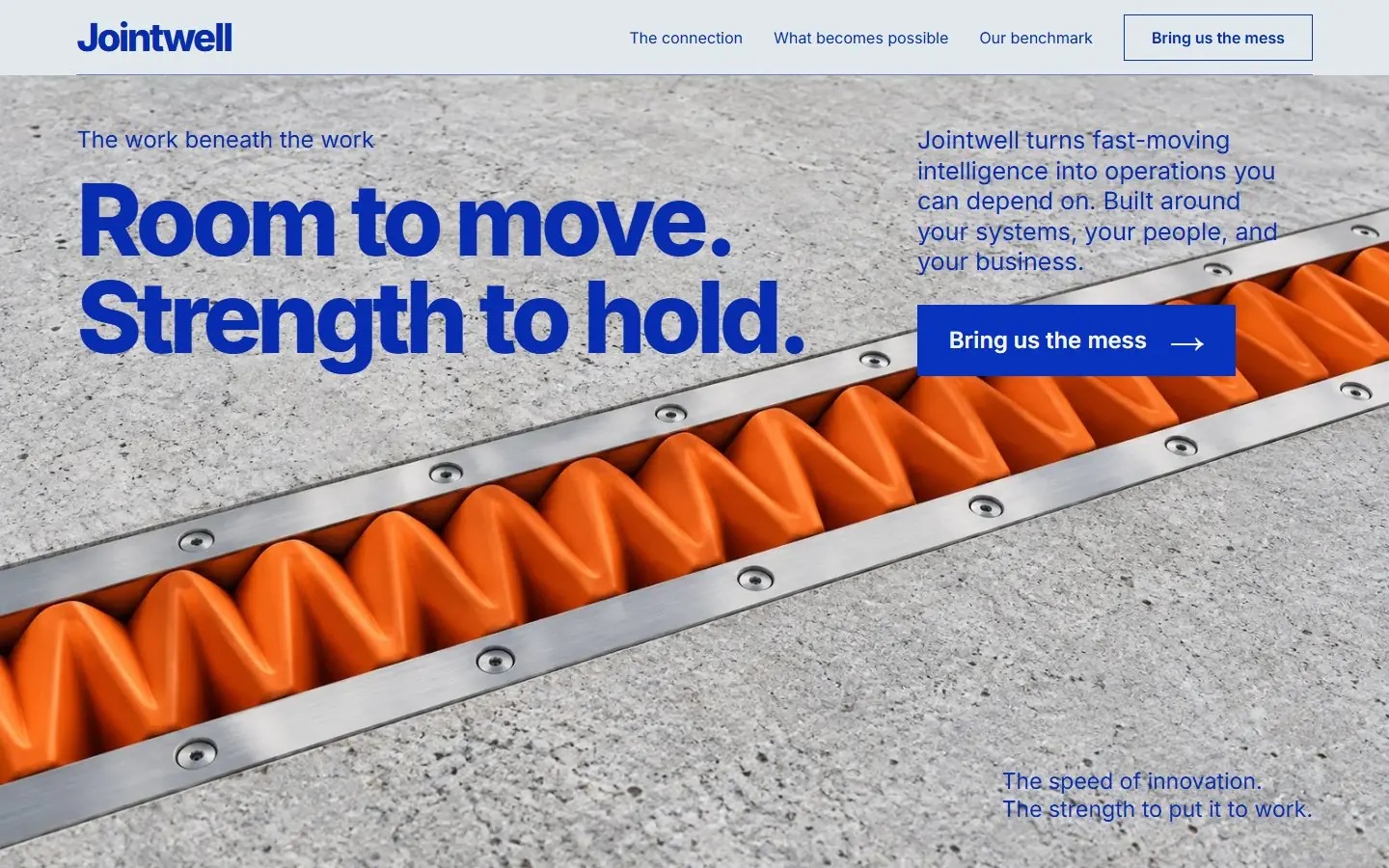
An AI services homepage built on one industrial metaphor: a flexible orange expansion joint that lets concrete move without cracking. The hero is a full-width macro photo of the joint, and the connection section takes the idea apart in an exploded diagram of steel, orange membrane and concrete with labeled leader lines.

Sections
8, 3 with their own script
Editable fields
116 in HubSpot and WordPress
Typefaces
Inter
Image files
2
Downloads
Astro 354 KB, HubSpot 1.6 MB, WordPress 1.5 MB
Look
Light background
Framer
Coming soon

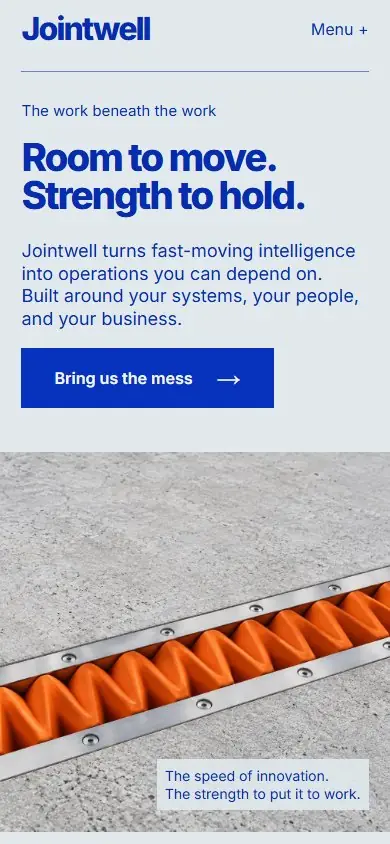
Screenshots of the live demo at 1440 and 390 pixels. The content is placeholder: Jointwell, a fictional company that builds and runs AI systems for other businesses.

Download Expansion Joint

Free: a short form (first name and work email) once, then every zip downloads straight away. Free to use and adapt for personal and commercial sites. Each zip holds one folder, expansion-joint, with a README; the install steps below are condensed from it.

Astro

expansion-joint-astro.zip · 354 KB

Download zip

An Astro project: one component per section, design tokens in global.css, images in public/assets.

Needs Node 22.12 or newer.

  1. Unzip expansion-joint-astro.zip; it holds one folder, expansion-joint.
  2. In that folder run npm install (Node 22.12 or newer).
  3. Run npm run dev and open http://localhost:4321.
  4. Edit the copy in src/components, the colors and type in src/styles/global.css, and the images in public/assets.
  5. Run npm run build; the static site is written to dist/.
More from the Astro README

What is where

  • src/pages/index.astro: the page head and the sections in order.
  • src/components: one file per section (8 in all), each with its markup, styles and script.
  • src/styles/global.css: design tokens (colors, type, spacing) and base styles.
  • public/assets: the images.
  • CLAUDE.md and AGENTS.md: notes that tell Claude Code or Codex how the project is organized.

Make it yours

  • Repeated items (cards, steps, questions) share the same markup: copy one to add another.
  • Remove a section by deleting its tag and its import in src/pages/index.astro.
  • Reuse a section elsewhere by copying its component file and global.css; a section depends on nothing else.
  • Set the title, meta description and JSON-LD block in src/pages/index.astro before publishing.
  • The header links scroll to sections of this page; "Bring us the mess" and the other calls to action scroll to the contact form.
  • The contact form validates, shows a thank-you message and sends nothing. Replace the submit handler in the script of the contact section with a request to your form service (its action is /contact).

HubSpot

expansion-joint-hubspot.zip · 1.6 MB

Download zip

A HubSpot CMS theme: one module per section, each with its own fields, plus Home and Page templates.

Needs a free HubSpot account and Node.js 20 or newer for the HubSpot CLI.

  1. Install the HubSpot CLI: npm install -g @hubspot/cli (Node.js 20 or newer).
  2. Run hs account auth and paste a personal access key with Design Manager ticked.
  3. Unzip expansion-joint-hubspot.zip, then from the folder that holds expansion-joint run hs cms upload expansion-joint expansion-joint.
  4. In HubSpot go to Content > Website Pages > Create > Website page, click the theme name under the search box, find Expansion Joint and click Set as active theme.
  5. Choose the template Expansion Joint - Home.
More from the HubSpot README

Change the content

  • Each of the 8 sections is a module with its own fields, 116 in all. Click a section in the page editor and its fields open on the left, grouped by item.
  • A field left empty removes its element; an empty image field shows the template's own image.
  • Sections are rows: drag, clone or delete them, and add one back from the theme's modules.
  • Header and footer are global content: what you change there changes on every page.
  • The template Expansion Joint - Page has the same header and footer and an empty area for other modules.

What the fields do not cover

  • More items than the template has (a fourth plan, an extra question) needs an edit in modules/<name>.module/module.html and fields.json.
  • Icons and drawings are inline SVG in module.html; colors, fonts and spacing are variables at the top of css/styles.css.
  • No blog templates and no 404, password or search pages of its own: HubSpot uses its defaults.
  • HubSpot takes no WebP in a theme, so the images are PNG and JPEG. Fonts load from Google Fonts.

How it was checked

  • Uploaded with the HubSpot CLI and rendered through HubSpot's theme preview in Chromium: every file uploads without an error and the homepage matches the static version pixel for pixel at 1440px and 390px.
  • Not checked: the page editor itself, publishing a page, and browsers other than Chromium.

WordPress

expansion-joint-wordpress.zip · 1.5 MB

Download zip

A WordPress block theme: one block per section with its fields in the editor, plus page, post, blog and 404 templates.

Needs WordPress 6.6 or newer and PHP 7.4 or newer.

  1. In WordPress go to Appearance > Themes > Add New Theme > Upload Theme.
  2. Choose expansion-joint-wordpress.zip, then Install Now and Activate.
  3. Open the site: the homepage shows the template, whatever Settings > Reading says.
  4. Edit each section in Appearance > Editor > Templates > Front Page, in the Block tab on the right, then Save.
More from the WordPress README

Change the content

  • Each of the 8 sections is a block with its own fields, 116 in all, listed in the Block tab and grouped by item. The page updates as you type.
  • Links: signup or /signup is a page of your site, #pricing jumps to a section, and full addresses, mailto: and tel: work as written.
  • A field left empty removes its element; clear every field of a card and the card goes.
  • Move sections with the arrows in the toolbar, or add one back from the block inserter under "Expansion Joint". The same blocks work on any page.

What the fields do not cover

  • More items than the template has needs an edit in sections/<name>.php (markup) and inc/sections.php (fields).
  • Icons are inline SVG; colors, fonts and spacing are variables at the top of css/styles.css.
  • The theme prints the page title; leave the meta description and structured data to an SEO plugin.
  • Functions and blocks are prefixed expansion_joint_ and expansion-joint/.

How it was checked

  • Installed from the zip in WordPress Playground on WordPress 7.1.3 with PHP 8.3 and on WordPress 6.6.10 with PHP 7.4: no PHP warnings, and the homepage matches the static version pixel for pixel at 1440px and 390px.
  • Not checked: a real hosting account, browsers other than Chromium, other plugins and multisite.

Framer

Framer version coming soon. It will be listed here next to the other three downloads.

The 8 sections of Expansion Joint

In page order. In HubSpot each one is a module and in WordPress a block, 116 fields in all; in Astro each is one component file. Remove, reorder or reuse any of them on its own.

  1. Header

    Bold Jointwell wordmark, three section links and an outlined "Bring us the mess" button over a thin blue rule

    11 fields · has its own script
  2. Hero

    "Room to move. Strength to hold." over the orange joint photo, intro, blue button and a two-line note

    8 fields
  3. Connection

    "The connection is the capability." with the exploded layer diagram, three labels and four verbs

    16 fields
  4. Standard

    The six conditions in a two-column grid on ultramarine, closing with "Pass all six. Then call it agentic."

    21 fields
  5. Real-world work

    "Important work. Unreasonable possibilities." with four quoted client problems in expandable ruled rows

    27 fields · has its own script
  6. How we work

    "Built with your team." with three numbered steps and a ruled strip of three placeholder client names

    15 fields
  7. CTA

    "The next connection is yours." on orange, with first name, last name and work email in a pale form panel

    12 fields · has its own script
  8. Footer

    Large white Jointwell wordmark on blue, the tagline, Back to top and the copyright line

    6 fields

Design notes

The first screen is a close-up photograph of pale concrete with a bright orange zigzag joint and brushed steel rails crossing it on a diagonal. The headline "Room to move. Strength to hold." sits at upper left in heavy ultramarine Inter, with the intro and a square blue "Bring us the mess" button at upper right.

The page then stays on a cool mineral gray background. The connection section shows the exploded diagram with three labels (AI, the operating layer, your operation) and a four-verb strip below it. The six conditions sit in white on a solid ultramarine panel with orange numbers, followed by four ruled problem rows, three numbered steps with a strip of client names, an orange contact band with a pale form panel, and a blue footer.

The whole page leans on one physical object. The joint photo carries the hero, and the second image splits the same materials into three layers, so the AI, company and client roles read as parts of one structure. Blue leader lines on desktop are tied to proportional points on the image, and on phones the diagram is followed by a plain three-part legend.

Shape and spacing

Square corners on buttons, panels and the form, with thin blue dividers between rows and columns. Content width is 89% of the screen up to 1720px, with mostly 24 to 40px of inner spacing.

Images

2 generated images as WebP (the orange expansion joint between concrete slabs, the exploded steel, membrane and concrete layer diagram). They are generated for the template, with no text, real logos or recognizable people in them.

Typefaces
  • InterEverything: the bold wordmark, tight heavy headings (up to weight 800), body copy, labels and buttons (weights 400 to 800)

Loaded from Google Fonts.

Colors
  • Ultramarine #0732BDHeadings, buttons, the standard panel and the footer
  • Ink #072CAFText and deeper blue details
  • Safety orange #FF6815Condition numbers, the closing line of the standard and the contact band
  • Mineral #E1E9EDThe main page background
  • White #F2F5F4Text on blue and the form panel
What works on the page
  • Header links jump to sections on the page; on phones a Menu button opens the links, works by keyboard and closes with Escape.
  • The four problem rows open and close by click or keyboard; the first starts open with its Understand, Connect, Resolve flow, and all text stays readable without JavaScript.
  • The form checks required fields and the email format, then swaps in an animated thank-you message that says nothing was sent.
  • A Back to top link sits in the footer, and transitions turn off under reduced-motion settings.

Who Expansion Joint fits

An AI integration or automation firm that sells reliability and wants a concrete, physical image instead of abstract AI art.

A company with an engineering or infrastructure feel that likes bold blue and orange and heavy sans headings.

A team that wants the AI, company and client roles explained in one picture rather than in paragraphs.

Anyone who wants a short page: eight sections, two images and a three-field contact form.
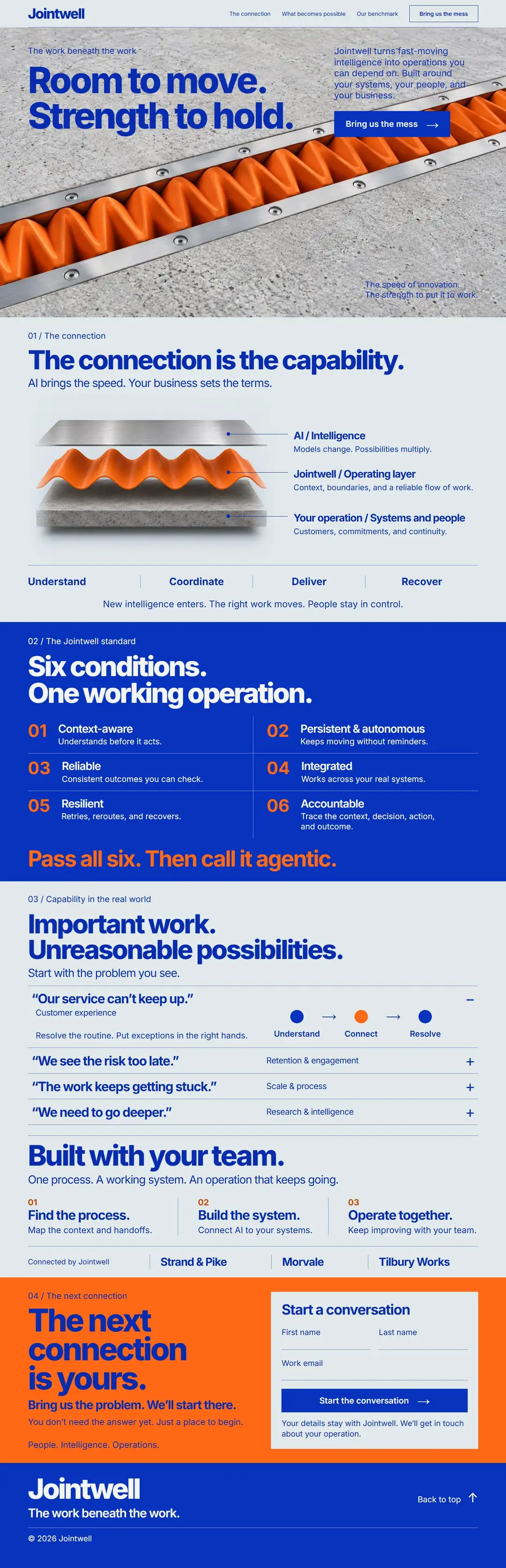
See the whole page as one image (1080 by 3346 pixels, 248 KB)
The full Expansion Joint homepage template from header to footer at 1440 pixels wide

Questions about Expansion Joint

What is the image in the Expansion Joint hero?

It is a generated macro photograph of an orange zigzag expansion joint with steel rails between concrete slabs, saved as WebP. The second image shows the same materials pulled apart as three layers. You can swap both for your own files in the assets folder.

Do the labels on the layer diagram move if I replace the image?

The desktop leader lines are anchored to proportional points on the image, so a replacement with similar framing keeps them in place. On phones the diagram is followed by a three-part legend, so the labels stay readable either way.

Does the contact form send messages?

The form checks the required fields and the email format, then shows a thank-you message that says nothing was sent. To receive messages, point it at your own form service or the form tools of HubSpot or WordPress.

Which font does it use?

Only Inter, loaded from Google Fonts in weights 400 to 800, with Arial as the fallback. The headings use the heavy weights set tight, which gives the page its blunt, engineered look.

Who are Jointwell, Strand & Pike and Morvale?

They are placeholders. The company name, the client names and the copy are fictional and are meant to be replaced with your own. Free to use and adapt for personal and commercial sites.

More AI services templates like Expansion Joint

Same content, different designs. Expansion Joint is listed in AI website templates, Agency website templates, One page website templates, Landing page templates, Homepage templates, HubSpot themes and WordPress block themes. Or browse the full gallery.

AI servicesLight8 sections

Harnessed Wind

A bright sea-glass sky page: a vermilion parafoil kite on taut lines beside a bold burgundy serif headline.

  • Astro
  • HubSpot
  • WordPress
  • Framer soon

AI servicesLight8 sections

Operating Certificate

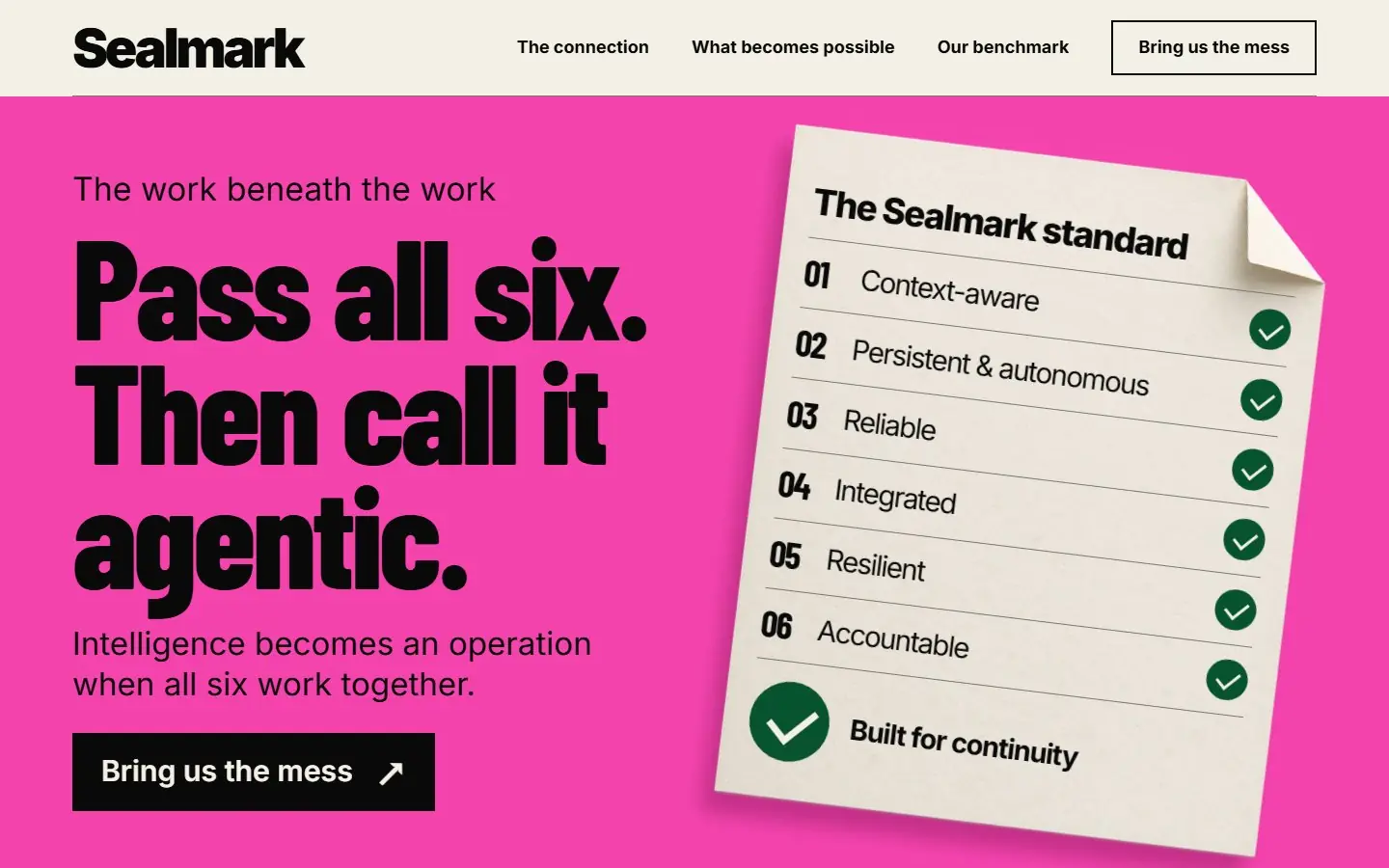
A fuchsia, type-led page: a huge condensed black headline beside a tilted paper certificate with six green check marks.

  • Astro
  • HubSpot
  • WordPress
  • Framer soon

AI servicesDark8 sections

Structure of Flight

Deep emerald page with mint X-ray art of a bird wing, a wing joint and a feather, light condensed type and vermilion buttons.

  • Astro
  • HubSpot
  • WordPress
  • Framer soon

Start with one process.

We learn the business and build your first go-to-market process on us this month.
Download the template

Free. Tell us who you are once and every template downloads straight away.

No newsletter unless you tick the box. Privacy policy